
Getting an Interactive Shell and Executing Commands
You can run a single command or open an interactive shell in the container supporting a running job within your workflow.
To open a shell in the job container, select the workflow to open its status page, select the running job – either by clicking its node on the canvas or by choosing it from the stage drop down below the canvas – and click the Terminal tab in the panel on the right.
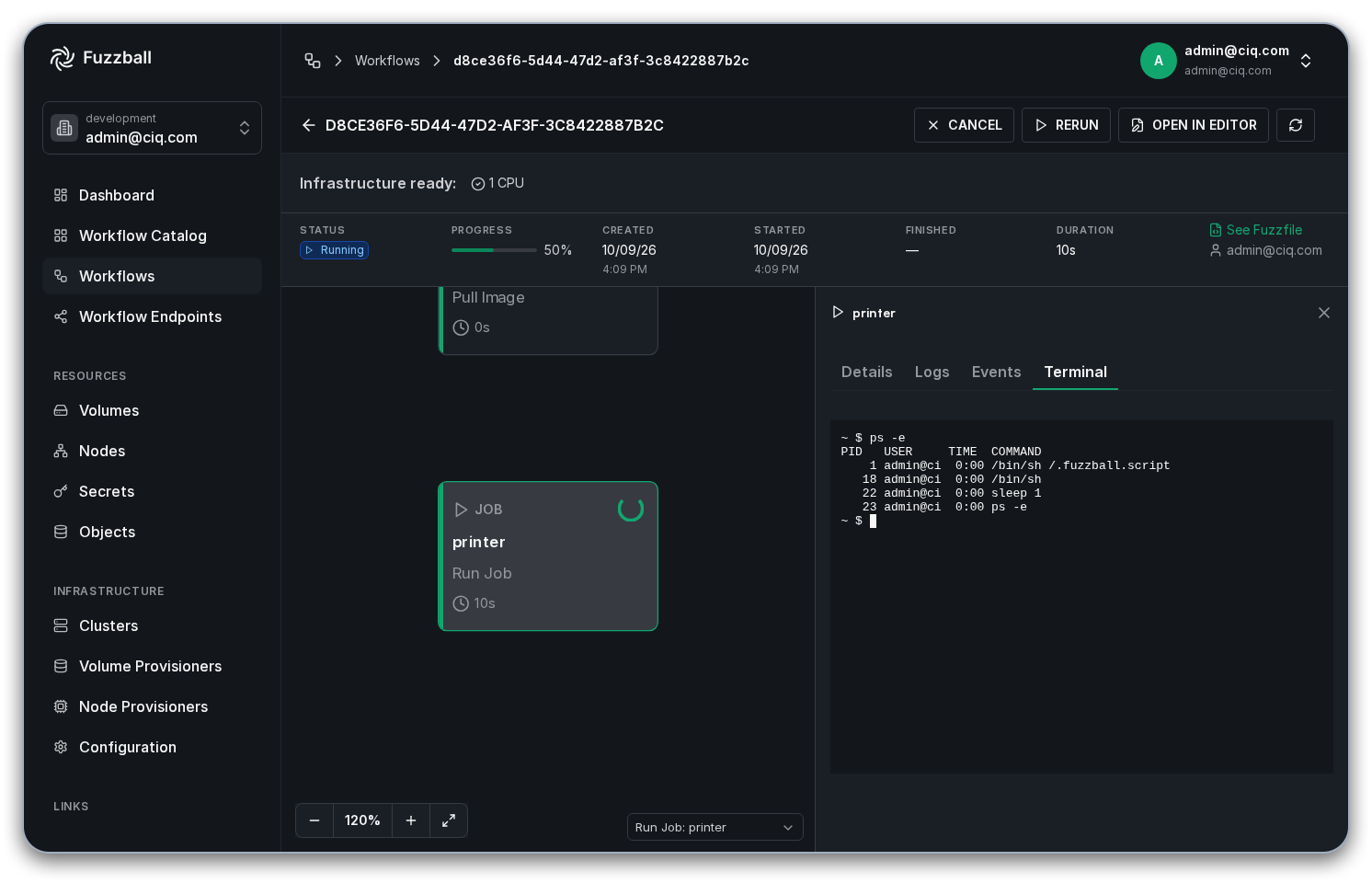
The CLI gives you two ways into the job container: run a single command and get its output back, or open an interactive shell. The web UI offers only the interactive shell, so reach for the CLI when you want to run a one-off command from a script.
Pass the command after the workflow ID and the job name, separated by --. If the printer job
is already running, this reads the container’s OS release file:
$ fuzzball workflow exec WORKFLOW_ID printer -- cat /etc/os-release
NAME="Alpine Linux"
ID=alpine
VERSION_ID=3.19.1
PRETTY_NAME="Alpine Linux v3.19"
HOME_URL="https://alpinelinux.org/"
BUG_REPORT_URL="https://gitlab.alpinelinux.org/alpine/aports/-/issues"
The version you see depends on the image pulled at run time, since printer uses the
alpine:latest tag.
The same form works for any command available in the container. This one lists the processes running inside it:
$ fuzzball workflow exec WORKFLOW_ID printer -- ps
PID   USER     TIME  COMMAND
    1 user@exa  0:00 /bin/sh /.fuzzball.script
   65 user@exa  0:00 sleep 1
   66 user@exa  0:00 ps
Fuzzball writes a job’s script to /.fuzzball.script and runs it with the interpreter named on
the script’s #! line, which is why that is what PID 1 shows. Jobs run as your Fuzzball
user, not as root.
Keep the -- separator. Without it, any option belonging to your command is parsed as an option
of fuzzball workflow exec, and the command fails before it reaches the container.
To open an interactive shell instead, add --tty and name a shell rather than a command:
$ fuzzball workflow exec --tty WORKFLOW_ID printer -- /bin/sh

~ $ ps -e
PID   USER     TIME  COMMAND
    1 user@exa  0:00 /bin/sh /.fuzzball.script
   18 user@exa  0:00 /bin/sh
   22 user@exa  0:00 sleep 1
   23 user@exa  0:00 ps -e
~ $ exit
The prompt belongs to the job container, so anything you run from it executes inside the
container. Type exit or press Ctrl-D to close the shell and return to your local terminal.